Getting tablet stylus types explained clearly matters before you buy either a tablet or a pen, because the word stylus covers four very different technologies — from a rubber-tipped stick that costs almost nothing to precision instruments with thousands of pressure levels — and they are not interchangeable. A pen that draws beautifully on one tablet may do nothing at all on another.
This explainer walks through each type: basic capacitive styli, fine-point capacitive pens, and the active pen systems used by Apple, Samsung, Microsoft and drawing-tablet makers, including how pressure sensitivity, tilt and palm rejection actually work. It finishes with how to check which pens your tablet supports and which type suits writing, drawing or simple tapping.
Disclosure: As an Amazon Associate, kajuandouglas.com earns from qualifying purchases. Links to Amazon on this page are affiliate links; they cost you nothing extra. Listing details such as price and availability change often, so check the current Amazon listing before you buy.
The Direct Answer
There are three practical families. Capacitive styli are passive sticks that mimic a fingertip — cheap, universal, fine for tapping and rough sketches, useless for handwriting. Active pens are electronic, paired to a specific tablet’s digitiser, and deliver pressure sensitivity and palm rejection for real writing and drawing; each brand’s system (Apple Pencil, Samsung S Pen, USI, Wacom EMR and AES, Microsoft Pen Protocol) works only with tablets built for it. If you plan to write or draw, you need an active pen matched to your tablet — everything else is a compromise.
In this guide
Capacitive Styli: The Finger Substitute
A capacitive stylus is simply a conductive tip — rubber dome, mesh, foam or a clear disc — that the touchscreen reads as a fat fingertip. It needs no battery, no pairing and works on every touchscreen ever made, which makes it handy for tapping small buttons with gloves, keeping screens clean, or letting children scribble in a drawing app. Its limits are fundamental: the tip is wide because the screen needs a finger-sized contact patch, there is no pressure information, and your palm resting on the screen registers as touches. Handwriting with one is like writing with a crayon taped to a sausage — possible, rarely pleasant.
Disc-tip and mesh-tip variants improve accuracy slightly by letting you see the contact point, and some fine-point capacitive pens add a battery to shrink the tip, but none of them gain pressure sensitivity or true palm rejection, because the tablet’s hardware simply is not listening for a pen. Buy these for navigation and casual use only, and spend as little as possible.
Active Pens: How Real Pen Input Works
Active pen systems add a digitiser layer in or under the display that tracks the pen separately from your fingers. That separation is what unlocks the three features that define real writing and drawing. Pressure sensitivity means the pen reports how hard you press — modern systems sense thousands of levels — so lines thicken and darken naturally as you bear down, like a real pencil. Tilt detection reports the pen’s angle, letting brushes shade like the side of a graphite stick. Palm rejection tells the tablet to ignore your resting hand entirely, so you can write in a natural posture instead of hovering.
The pen communicates its position hundreds of times per second, and the best systems predict the stroke slightly to hide latency, so ink appears to flow from the tip. This is why pen quality is a system property — digitiser, pen, screen lamination and software together — and why a great pen cannot rescue a tablet with no digitiser at all.
Gear for This Guide
Verified tablets that ship with, or are built for, active pens:

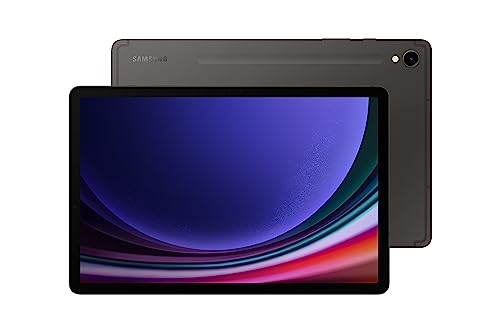
Samsung Galaxy Tab S9 11” 128GB WiFi 7 Android AI Tablet, Snapdragon 8 Gen 2 Processor, AMOLED Screen, Durable Design, S Pen Included, Long Battery Life, Auto Focus Camera, US Version, 2023, Graphite — Samsung’s Galaxy Tab S9 includes the S Pen in the box; it uses Wacom EMR technology, so it needs no charging and offers pressure and tilt for notes and drawing. Check price on Amazon.
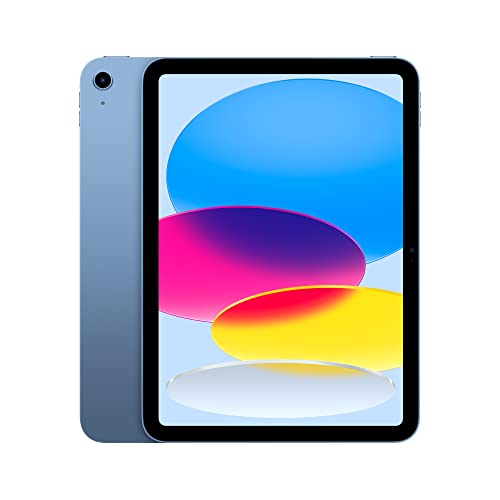
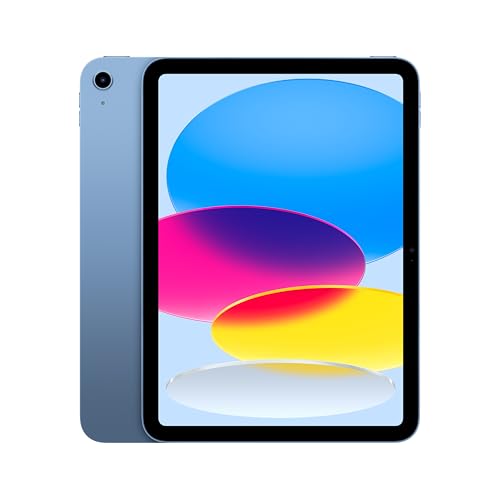
Apple iPad (10th Generation): with A14 Bionic chip, 10.9-inch Liquid Retina Display, 64GB, Wi-Fi 6, 12MP front/12MP Back Camera, Touch ID, All-Day Battery Life – Blue — Apple’s standard iPad works with Apple Pencil models, the active-pen system with the deepest support across art and note-taking apps. Check price on Amazon.

Samsung Galaxy Tab S6 Lite (2024) 10.4″ 64GB WiFi Android Student Tablet, S Pen for Note-Taking, Gaming Ready, Long Battery Life, Expandable Storage, US Version, Oxford Gray, Amazon Exclusive — the Galaxy Tab S6 Lite is the mid-tier example of a tablet bundled with an S Pen, a common route into proper handwriting without flagship pricing. Check price on Amazon.
Tablet Stylus Types Explained and Compared
The four families side by side:
| Type | How it works | Pressure / palm rejection | Best for |
|---|---|---|---|
| Basic capacitive | Conductive tip mimics a finger | None / none | Tapping, gloves, kids’ scribbles |
| Fine-point capacitive | Battery-powered narrow tip, still finger-emulation | None / app-dependent partial | Slightly neater tapping and rough notes |
| Active EMR (S Pen, Wacom) | Electromagnetic layer in the display powers the pen | Yes / yes | Notes and drawing; pen needs no charging |
| Active capacitive systems (Apple Pencil, USI, AES, MPP) | Pen with its own electronics talks to the digitiser | Yes / yes | Notes and drawing; pen charges via USB or magnetically |
The Brand Systems, Briefly Decoded
Apple Pencil works only with iPads, in specific model pairings — check the exact iPad and Pencil generation combination before buying, because Apple has sold several Pencils with overlapping names. Samsung’s S Pen uses Wacom EMR: the display powers the pen, so it never needs charging, and it ships with many Galaxy Tab models. USI (Universal Stylus Initiative) is the cross-brand standard used by many Chromebooks and some Android tablets — a USI pen works across USI devices. Microsoft’s Pen Protocol covers Surface devices, and Wacom’s AES appears in various Windows tablets and convertibles. The rule that never changes: the pen standard must match the tablet’s digitiser, and brand marketing names are the only reliable guide.
Common Misconceptions About Tablet Styli
The most expensive misconception is that any stylus can add pen features to any tablet — it cannot; the hardware layer must exist. Second is chasing pressure-level numbers: beyond a few thousand levels, differences are invisible in real drawing, while latency and palm rejection shape your experience far more. Third, people assume a pen that works on a friend’s tablet will work on theirs, when even two models from the same brand may use different systems. Finally, note-takers often blame their handwriting on the pen when the real culprit is a non-laminated screen, where the visible gap between tip and line breaks the illusion of ink.
Choosing the Right Stylus for Your Use
For tapping, signing the odd form and keeping fingerprints off a shared tablet, a basic capacitive stylus is genuinely enough. For handwritten notes — lectures, meetings, journaling — you need an active pen with palm rejection, full stop; this is the single feature that separates writing from struggling. For drawing and painting, prioritise an active pen with tilt support on a laminated display, and check that your preferred art app supports that pen’s pressure fully. Whatever you choose, verify compatibility from the tablet maker’s own pen list for your exact model before spending anything.
Latency, Lamination and the Feel of Ink
Specifications quote pressure levels because they are easy to print; the qualities that decide whether digital ink feels real are latency and parallax. Latency is the delay between the pen moving and the line appearing — the best current systems reduce it to the point where the line seems attached to the tip, while budget systems trail visibly behind, which artists describe as writing on a string. High screen refresh rates help here, because the display can present the stroke sooner.
Parallax is the visible gap between the pen tip and the line, caused by the thickness of glass between the surface and the pixels. Laminated displays bond the layers together and shrink that gap to near nothing; non-laminated displays leave a small but perceptible offset, most obvious at glancing angles. This is why two tablets with the same pen can feel different, and why drawing-focused buyers should read screen construction as carefully as pen specifications.
Nib material finishes the feel: softer, friction-adding tips mimic paper’s drag and suit writing, while hard smooth tips glide for fast sketching. Many pen systems offer interchangeable nibs, and choosing the friction you prefer is the cheapest upgrade in digital handwriting — a detail worth knowing before concluding that a pen ‘feels wrong’ and replacing the whole system.
Software: Where Pen Features Live or Die
A pen’s pressure and tilt only matter if the app reads them. The major note-taking and art apps on each platform support their platform’s pens fully, but smaller apps vary, and the same app can behave differently across platforms. Before committing to a tablet-and-pen combination for a specific purpose — annotating PDFs, marking music, sketching in a particular app — confirm that the app, on that platform, with that pen, supports the features you need. This three-way check is the step professionals never skip.
Handwriting recognition deserves its own note: modern systems convert handwriting to text in the background, power searching of handwritten notes, and tidy scrawl into clean lines and shapes. These features are software, delivered by the platform and apps, and they have become good enough that searchable handwritten notes are now a realistic default rather than a novelty — provided the underlying pen system gives clean input, which returns the decision, as always, to the active pen and palm rejection.
For students, the practical stack is pen plus a notes app with audio recording synced to strokes, so tapping a word replays what was said when it was written. For artists, it is pen plus a brush engine that uses tilt properly. For everyone, it is worth spending an evening learning your pen’s buttons, gestures and charging routine — the features exist, but only for owners who know them.
Buying Advice, Distilled
Match the pen to the tablet first, the tablet to the task second, and the nib to your hand third. Buy the pen the tablet’s maker designed for it, in the correct generation — third-party active pens exist for some systems and can be good value, but verify pressure and palm rejection support explicitly rather than assuming. Keep a spare nib and know how the pen charges before you travel with it. And if your use is genuinely tapping and signing, save the money entirely: the humble capacitive stylus is the right tool, honestly chosen.
Stylus Care, Nibs and Batteries
Active pens are precision instruments with consumable tips: nibs wear with use, faster on textured screen protectors, and a worn nib feels scratchy and can mark a protector. Inspect the nib monthly if you write daily, replace it when it flattens or sharpens asymmetrically — spares usually ship in the pen’s box — and never write with a damaged nib on an unprotected screen. EMR pens ask nothing else; battery pens ask a charging habit, and the owners who suffer flat pens are those whose pen charges separately from their routine. Pens that charge magnetically on the tablet itself effectively eliminate the problem, which is worth weighting when choosing between two otherwise equal tablets.
Storage is the other care item: pens are lost more often than they break. A case with a pen loop or magnetic hold, a consistent home for the pen on the desk, and the tablet’s find-my-pen beep feature where offered are the practical defences. Replacement pens are disproportionately expensive compared with the tablets they serve, so the boring habits pay.
Capacitive styli need no care beyond replacing a perished rubber tip, and children’s art styli should be treated as the consumables they are. Match the care effort to the technology tier, as with everything else in this explainer.
Testing a Pen Before You Commit
In a shop or within a returns window, run three tests. The handwriting test: write a paragraph at your natural speed, resting your palm as you would on paper — stray marks or cursor jumps expose weak palm rejection instantly. The slow-line test: draw the slowest diagonal line you can — a wobbly, stepping line reveals digitiser quality more honestly than any fast flourish, and illustrators should weight this test heavily. The tilt test: shade with the pen’s side like a pencil — if the app and pen respond with broad, soft strokes, tilt works; if nothing changes, it does not, whatever the box claims.
Then write in the app you will actually use, because pen behaviour is a three-way property of pen, tablet and software. A combination that sings in the demo app and stumbles in your notes app is the wrong combination for you, full stop. Ten minutes of honest testing prevents the most expensive stylus mistake: a technically excellent pen married to the wrong ecosystem for your work.
The Technologies, Compared in Plain Language
Bluetooth pens, tilt, and the features that justify them
- Advanced pens add their intelligence through a wireless connection to the tablet: pressure curves tuned per app, tilt detection that shades like a real pencil, buttons and gestures, and in some systems the ability to hover a cursor before the tip lands. These features earn their keep for artists, designers, and heavy annotators, for whom the pen is a professional instrument used hours daily. For note-takers, the honest gains are smaller: neatness, comfort, and palm rejection matter far more than tilt, and those are available in simpler pens.
- The costs of intelligence are charging, pairing, and price. A pen that must be charged will one day be flat at the moment of inspiration, which is why battery-free designs that draw power from the screen itself have devoted followings among note-takers. When choosing, weigh the feature list against your failure tolerance: the artist accepts charging as the price of tilt; the student in a three-hour examination cannot accept a flat pen at any price, and should choose accordingly.
Pen latency and the illusion of ink
- Latency is the delay between moving the tip and seeing the line, and it is the sum of the pen, the screen’s sensing, the processor, and the app’s rendering. Low latency creates the illusion that ink flows from the nib; higher latency makes the line chase the pen like a reluctant dog, which writers tolerate and artists cannot. Screen refresh rate, lamination, and the app’s optimisation all contribute, which is why the same pen can feel different in different apps on the same tablet.
- Test latency with fast, long strokes and quick handwriting rather than careful drawing, because speed exposes delay. Write your signature at natural pace, scribble a sentence, and draw long curves. If the line keeps up with your hand without thought, the system is fast enough for you, whatever its figures claim. Trust that test over specifications, because latency is an experience, not a number, and your hand is the instrument calibrated to judge it.
Matching Pen to Purpose: Four Working Lives
The student note-taker
- Students need reliability, legibility, and organisation more than artistry: a pen that never needs charging during the academic day, palm rejection that survives a full lecture of writing, and a notes app that searches handwriting and syncs to the cloud for revision. Pressure sensitivity is a pleasant extra; tilt is irrelevant; the pen’s price matters because students lose things, and a pen that can be replaced without tears is a pen that gets used fearlessly. Many students are best served by the maker’s own mid-level pen or a reputable alternative designed for their exact tablet model.
- The student’s real workflow test is a full day: three lectures, library annotation of PDFs, and revision from the same notes in the evening. Run that day mentally against any candidate pen and app combination, including how notes are filed, searched, and backed up. A pen is only as good as the system of notes it feeds, and the semester is won or lost in the filing, not the nib.
The artist and illustrator
- Artists should start from software and work backwards: choose the drawing applications that suit your style, confirm which pens they support fully, including pressure and tilt behaviour, and then choose within that set. Brush feel varies enormously between apps on identical hardware, so trial the combination if you possibly can. Screen texture matters too: some artists add a matte protector for paper-like friction, accepting a slight softening of the image in exchange for control, while others prefer the glide of bare glass for inking.
- Nib choice is the artist’s quiet variable. Softer tips give friction and wear faster; harder tips glide and last; felt and rubberised variants tune the feel further. Keep spare nibs of your preferred type, because a worn nib changes line quality gradually enough to be blamed on your own skill. Your pen system, pen, nibs, app, and screen surface, should be chosen as one instrument, because that is what it becomes in your hand after a hundred hours.
The professional annotator and signer
- For the professional whose pen work is marking documents, signing, sketching ideas in meetings, and annotating plans, the priorities are presence and reliability: the pen lives attached to the tablet, wakes instantly, and works in every app without configuration. Fine pressure curves and tilt are wasted here; a comfortable grip for intermittent use and a tip that glides on glass without skating are the whole specification. Many such users are best served by the standard pen of their tablet’s own ecosystem, bought with the tablet and never thought about again, which is precisely the point.
- If signatures carry legal weight in your work, check how your organisation’s document systems handle pen input and whether any certified process applies. The pen hardware is rarely the issue; the software trail behind the signature is. A five-minute conversation with whoever manages your documents will prevent the purchase of a beautiful pen for a workflow that required a different system entirely.
- Note-takers: prioritise battery-free reliability, palm rejection, and a searchable notes app.
- Artists: choose software first, then the pen it fully supports, and tune nibs and screen texture as one instrument.
- Annotators: value instant availability and ecosystem fit over pressure and tilt features.
- Everyone: test fast handwriting and long strokes, because latency is judged by the hand, not the brochure.
Ownership: Nibs, Batteries, Pairing, and Loss
The consumables nobody budgets for
- Pens have running costs. Nibs wear, fastest for heavy-handed writers and artists using textured protectors, and a worn nib scratches screens and ruins line quality if ignored. Batteries age in rechargeable pens. Tips, batteries, and replacement pens should be priced and checked for availability before you commit to a pen system, especially for less common tablets where a discontinued pen can strand the whole setup. Keeping a spare nib in the case and a spare pen in the drawer, for professionals whose work depends on it, is cheap insurance against the day’s small disasters.
- Loss is the largest running cost of all. Pens are small, valuable, and magnetically attached with varying degrees of conviction. If your pen’s attachment is weak, a case with a proper pen loop or slot is not an accessory but a necessity. Enable any find-my-pen or last-location feature your system offers, and develop the habit of docking the pen the moment you stop writing. The best pen system in the world has a total cost dominated by the pens you replace, unless your habits protect the one you have.
Pairing problems and their calm solutions
- When a pen misbehaves, the fault is usually mundane: a flat battery, a worn nib, a lost pairing, or an app that needs its pen settings revisited. Work the calm sequence: charge or confirm power, reseat or replace the nib, toggle the tablet’s wireless off and on, re-pair the pen, and test in a second app to separate pen faults from app faults. A pen that works in one app and not another is reporting a software setting, not dying, and the fix lives in that app’s preferences.
- Keep firmware and apps updated, because pen behaviour is refined constantly and some updates specifically address latency, pressure, and palm rejection. If problems persist across apps with a fresh nib and a full charge, contact the maker with your test notes; pen faults under warranty are usually resolved by replacement, and your methodical notes will shorten the conversation considerably.
The Future-Proofing Question: Standards and Lock-In
Proprietary systems versus open standards
- Pen technology divides into proprietary systems, tuned tightly to one maker’s tablets, and broader standards supported across brands. Proprietary pens usually offer the best integration, features, and feel on their home tablets, at the price of uselessness elsewhere. Standards-based pens offer flexibility across devices and makers, sometimes with slightly less polish in advanced features. Your choice should follow your household: a one-brand home can enjoy proprietary excellence, while a mixed-device home, or a user who changes brands, may value a pen that follows them.
- Either way, buy the pen and tablet as a confirmed pair. Compatibility in pen systems is exact, not approximate: a pen can share a brand with your tablet and still be the wrong generation or protocol. Check the maker’s compatibility list for your precise model before purchase, and be wary of marketplace listings that promise universal fit. In pen systems, universal is a word that should make you read the small print twice.
Handwriting, Drawing, and the Apps That Decide Everything
Why the app matters as much as the pen
- Two people can use the same pen on the same tablet and report different experiences, because the app renders every stroke. Notes apps differ in ink quality, organisation, search, and export; drawing apps differ in brushes, layers, and pressure response. Before investing in a premium pen, invest an hour in the apps: trial the leading notes and drawing applications for your platform, write and draw real work in each, and notice which ink engine flatters your hand. A mid-range pen in an app you love will serve you better than a flagship pen in an app you tolerate.
- Consider also where your work must go afterwards. Notes that must become text, documents that must be shared with colleagues on other platforms, artwork that must arrive print-ready: each destination favours particular apps and export paths. The pen is the visible instrument, but the workflow is the product, and choosing the pen before the workflow is buying a steering wheel before deciding where you drive.
Left hands, small hands, and accessibility
- Pen design quietly assumes a standard hand. Left-handed writers push pens rather than pull them, hover differently over palm-rejection sensors, and benefit from apps that move toolbars and from grips that suit their angle. Writers with smaller hands, arthritis, or grip difficulties should weigh pen diameter and weight seriously: a slightly thicker, lighter pen can be the difference between a page and a paragraph. Some systems offer alternative pen shapes and button placements, and occupational common sense says try before committing where your hand’s comfort is the whole question.
- Software can compensate generously: line smoothing, zoom windows for detailed writing, and dictation alongside handwriting all widen who can work comfortably by pen. If pen input is difficult for you in one app, trial another before blaming the hardware. The goal is a system fitted to your hand and habits, and the market, at its best, offers enough variety to fit most hands that are willing to test honestly.
Stylus Myths and Marketing, Translated
Pressure levels and the numbers game
- Pen specifications advertise pressure levels in the thousands, and the numbers invite a simple conclusion that more is better. In practice, what your hand perceives is the shape of the pressure curve, how little force starts a line, how smoothly it builds, and how predictably it ends, far more than the count of steps along it. Beyond a modest threshold, additional levels are invisible in real drawing and writing, because neither paper nor hands work in thousands of gradations. Judge pressure by drawing: fine lines at a whisper of force, controlled thickening as you press, and clean tapering as you lift. A pen that does those three things beautifully has all the pressure performance you will ever use.
- Tilt figures deserve the same translation. Tilt matters if your style shades with the side of a virtual pencil or uses broad calligraphic strokes; it is decorative specification for handwriting and annotation. Buyers should rank features by their own strokes: write your name, shade a cube, annotate a page, and see which features your hand actually invokes. The pen industry sells instruments for every style at once; your hand needs the subset that matches yours, and it is usually a smaller, cheaper subset than the flagship’s.
Compatibility charts and the used-pen market
- Second-hand pens are tempting and treacherous in equal measure, because compatibility is invisible. A pen can be physically identical across generations while its protocol changes, and listings are not always precise about which generation is being sold. Before buying a used pen, identify its exact model, check it against your tablet maker’s compatibility list, and confirm the nib type and availability. A bargain pen that pairs and writes is a triumph; one that almost works is money converted into frustration at an excellent rate.
- The same care applies to new pens from third parties. Reputable accessory makers publish exact compatibility and honour it with returns; vague marketplace promises of universal active-pen support should be read as capacitive pens in costume. In this category more than most, the maker’s list is the law, and a few minutes with it is the difference between an instrument and an ornament.
Building Your Pen Setup: A Practical Assembly Guide
The pen, the app, the surface, the case
- Assemble your pen system in order. First the tablet and its supported pen technologies, which bound everything else. Then the pen itself, chosen for your purpose using the tests in this guide: a full page of handwriting, a shaded drawing, a signed document, at natural speed. Then the app, trialled with real work, because ink engines differ and organisation decides whether notes get used or merely taken. Then the surface: bare glass, a glass protector, or a matte paper-feel protector, chosen by how much friction your hand wants and how much image softness your eyes accept. Finally the case, which must hold the pen so securely that the system survives bags and sofas.
- Live with the assembly for a week before judging it, because hands learn: latency that felt odd on day one is often invisible by day five as your writing adapts, while a grip that aches in ten minutes will ache forever. Keep receipts and packaging through that week. A pen setup is a personal instrument, closer to a musician’s mouthpiece than to a phone charger, and it deserves the same seriousness of fitting. Fitted well, it disappears, and only the work remains, which is the highest praise any tool in this guide can earn.
Stylus Care Routines and Troubleshooting, Extended
A monthly minute for your pen
- Pens reward a tiny routine. Monthly, inspect the nib under good light and replace it at the first sign of flattening, roughness, or a bent tip, because a damaged nib is a screen’s enemy and a line’s saboteur. Wipe the pen body and tip with a dry or barely damp cloth, especially if it lives in bags and kitchens. Check the charge habit of rechargeable pens: a pen kept topped up in small sips ages its battery more gently than one repeatedly run to empty and rescued in panic before lectures.
- Store the pen as the system intends, attached or in its case slot, and enable any lost-pen location feature before you need it. If your pen offers firmware updates through its app or the tablet’s settings, install them during this monthly minute, since pen firmware quietly improves pairing, pressure, and battery behaviour. The routine takes less time than finding a lost pen once, which is the correct way to think about all maintenance in these guides: small, regular, and cheaper than the alternative.
When handwriting recognition disappoints
- Owners sometimes blame a pen for handwriting recognition that mangles their notes, when the fault lies in settings, language selection, or the app’s engine rather than the hardware. Check that the recognition language matches the language you write in, including its regional variant, write at your natural size rather than cramping letters for the machine, and trial a second notes app before condemning the pen, because engines differ dramatically in how they read the same hand. Slanted, joined, and heavily abbreviated hands are the hardest test, and even good systems need the writer’s cooperation: consistent letterforms and a moment’s care at names and numbers, which recognition cannot guess from context.
- Remember also what recognition is for. If your notes are for your own eyes, your handwriting as an image, searchable by date and tag, may serve perfectly without conversion at all. Conversion earns its complexity when notes must be shared, searched by content, or flow into documents. Choose the workflow your notes actually live in, and let the pen be judged on the strokes it makes, which is the part of the system it truly controls.
From First Pen to Confident System: A Buyer’s Sequence
The order in which to decide
- Buyers overwhelmed by pen variety should decide in a strict order, because each step shrinks the next. First, the tablet, chosen for its screen, system, and your work, which determines which pen technologies exist for you at all. Second, your primary use, writing, drawing, or annotating, which determines which features matter and which are decoration. Third, the pen, chosen from your tablet maker’s compatibility list, tested with a full page of your real work at natural speed. Fourth, the app, trialled until its ink and organisation feel like home. Fifth, the surface and case, tuned last, because they adjust a system that already works rather than rescuing one that does not.
- Followed in that order, the decision that looked like a thicket becomes a path, and each choice is made with the information the previous one provides. Followed in any other order, buyers end up with beautiful pens incompatible with their tablets, apps that waste their pen’s best features, and protectors fighting their nibs. The sequence costs nothing and prevents nearly every regret this category offers, which is why this guide ends with it: tablet, purpose, pen, app, surface. Write it on the box when your pen arrives, and the next buyer in your household will thank you.
Pens for Young Writers and Returning Writers
Children, students, and hands that are learning
- For children, the right pen is the one that survives childhood: robust, inexpensive enough to replace without a family summit, and simple enough to work without pairing rituals. Handwriting learned on a tablet benefits from a pen with a comfortable grip and a nib with some friction, so strokes form deliberately rather than skating. Parents should check that the child’s apps, not the pen’s feature list, carry the educational value, and that the pen can be stored attached or tethered, because a child’s pen leads an adventurous life and its replacement cost, multiplied by adventure, is the true price of the system.
- Returning writers, adults who have not written by hand in years and find their hand tires or their script wanders, should give the pen and themselves a fair week. Muscles relearn, grips adjust, and apps offer line smoothing and zoomed writing windows that make early pages kinder than expected. Choose a pen with a diameter that fills the hand without forcing a grip, write daily in short sessions, and judge the system at the week’s end rather than the first evening’s end. Handwriting, like the tablet itself, rewards the owner who lets a fair trial finish before delivering the verdict.
The Pen Drawer: Organising a Multi-Pen Household
When several pens live in one home
- Households accumulate pens the way they accumulate chargers: one per tablet, a spare, a child’s, a visitor’s favourite, each with its own nibs and habits. Label them, literally if necessary, because pens that look alike may belong to incompatible systems, and a pen forced into the wrong partnership wastes an evening in pairing screens. Keep each pen with its tablet’s case or charger, keep one shared pot of spare nibs only if the pens genuinely share a nib type, and record which pen belongs to which device in the household’s device notes.
- When a pen is lost in such a household, search by system: check the last tablet it was used with, its case, and the magnetic surfaces of the home, fridge doors and laptop lids included, where wandering pens roost with comic consistency. A household that organises its pens spends its money on nibs and its time on writing, which is the correct allocation, and the drawer, once tamed, stays tame with nothing more than the labelling habit that tamed it.
Related Guides
- best tablets for note taking with a stylus
- best tablets for note taking
- best tablets for video calling
- best tablets for reading
- how to choose a tablet
- what is a good tablet screen size
- iPad vs Android tablet
Frequently Asked Questions
Will any stylus work with my tablet?
Basic capacitive styli work on every touchscreen, but only as finger substitutes. Active pens work only with tablets that have the matching digitiser system — Apple Pencil with compatible iPads, S Pen with supported Samsung devices, USI pens with USI tablets, and so on. Always check the tablet maker’s compatibility list for your exact model before buying a pen.
What is palm rejection and why does it matter?
Palm rejection means the tablet ignores your hand resting on the screen while the pen is active, so you can write in a natural position. It requires an active pen system; without it, resting your palm creates stray marks and jumps. Anyone planning real handwriting should treat palm rejection as non-negotiable.
Do active pens need charging?
It depends on the technology. EMR pens such as Samsung’s S Pen draw power wirelessly from the screen and never need charging. Pens like Apple Pencil, USI and AES models contain batteries and charge magnetically on the tablet or via USB-C. A flat active pen usually still needs a few minutes of charging before it writes again.
Is a cheap stylus good enough for note-taking?
For typed notes with occasional taps, yes. For handwriting, no — a cheap capacitive stylus lacks palm rejection and pressure sensing, so your writing will be thick, wobbly and tiring. Students and professionals who write daily should budget for the active pen designed for their tablet; it transforms the experience completely.
What do pressure levels actually do?
Pressure sensitivity lets the pen vary line width and opacity with how hard you press, mimicking real pencils and brushes. Modern active pens sense thousands of levels, which is more than enough — beyond a point, latency, tilt support and the app’s brush engine matter more to how drawing feels than the raw level count.
Can I use one pen across my tablet and laptop?
Only if both devices share the same pen standard — for example, USI across compatible Chromebooks and tablets, or Microsoft Pen Protocol across supported Windows devices. Apple Pencil works nowhere but iPads, and S Pen works only on Samsung’s supported devices. Check both devices’ pen specifications before assuming a shared pen is possible.
Can I use any stylus on any tablet?
No. Basic capacitive styli work on any touchscreen for tapping and simple drawing, but advanced pens with pressure, palm rejection, and tilt work only with tablets that support their specific technology and protocol. Always check the pen maker’s compatibility list for your exact tablet model before buying, because pens that share a brand can still be incompatible across generations.
Why does my stylus skip or lag when I write fast?
Skipping and lag usually come from a worn nib, a low pen battery, an app that is struggling with a large document, or interference with palm rejection. Replace the nib, charge the pen, and test in a simple notes app: if the problem vanishes, the original app or document was the cause; if it persists everywhere, re-pair the pen and update the tablet’s software before suspecting hardware failure.
Is a paper-like screen protector worth it for writing?
For heavy writers and artists, a matte paper-feel protector adds friction that many find improves control and comfort, making the pen feel less like it skates on glass. The trade-offs are a slight softening of the display’s sharpness and faster nib wear. If you write for hours daily it is often worth it; if your pen use is occasional signing and annotating, bare glass or standard glass protectors serve better.